Documentation
Everything you need to know about using Typesense Desktop Client for macOS to manage your Typesense search servers.
Getting Started
Typesense Client is a native macOS admin tool for Typesense search servers. It provides a visual interface for managing collections, documents, API keys, and server operations — no command line required.
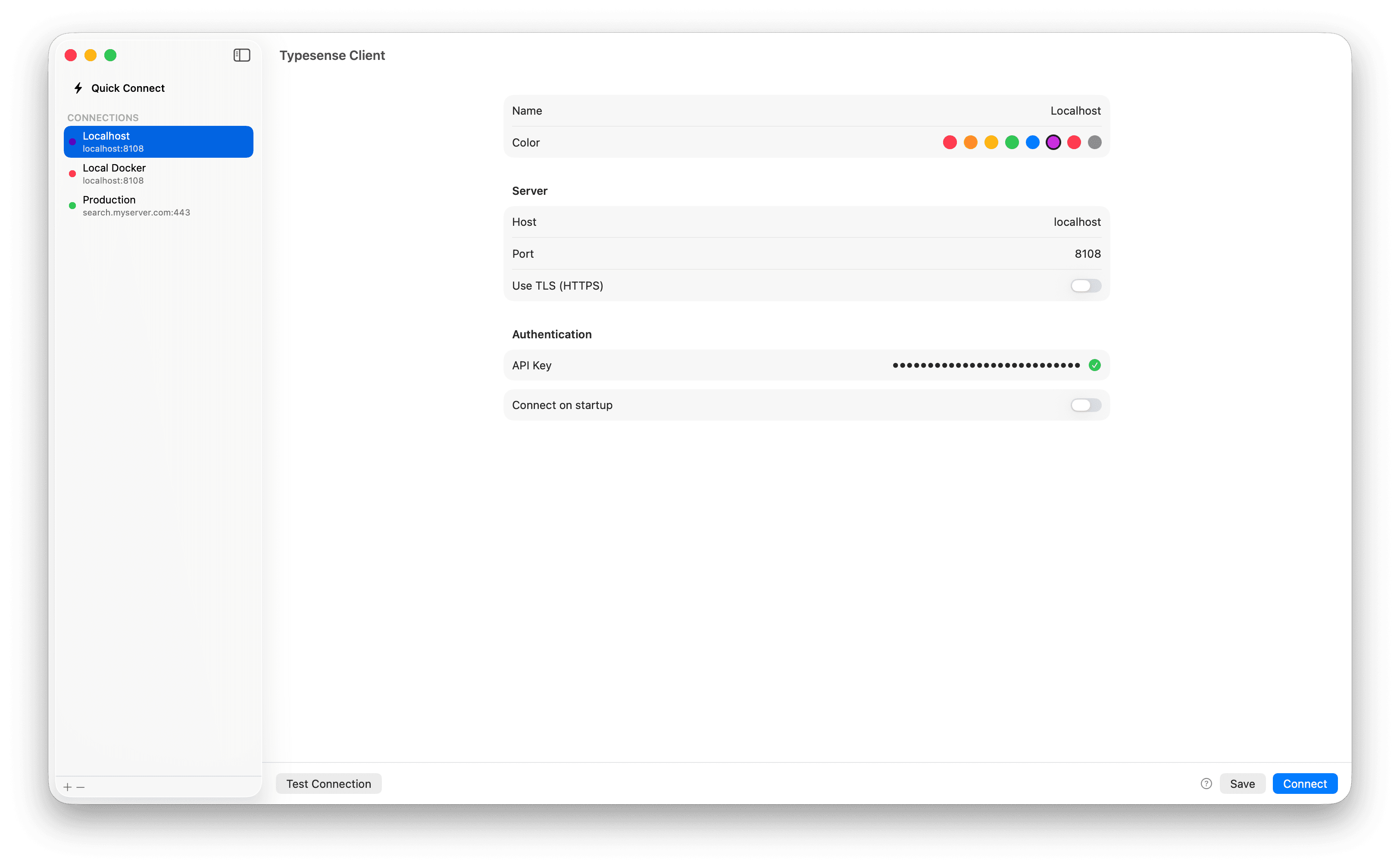
Open the app and create a new connection using the + button, or use Quick Connect for a one-time session.
Enter your Typesense server host, port, and API key. Paste a full URL (e.g. https://my-server.com:443) and it auto-detects port and TLS settings.
Click Test Connection to verify credentials, then Connect.
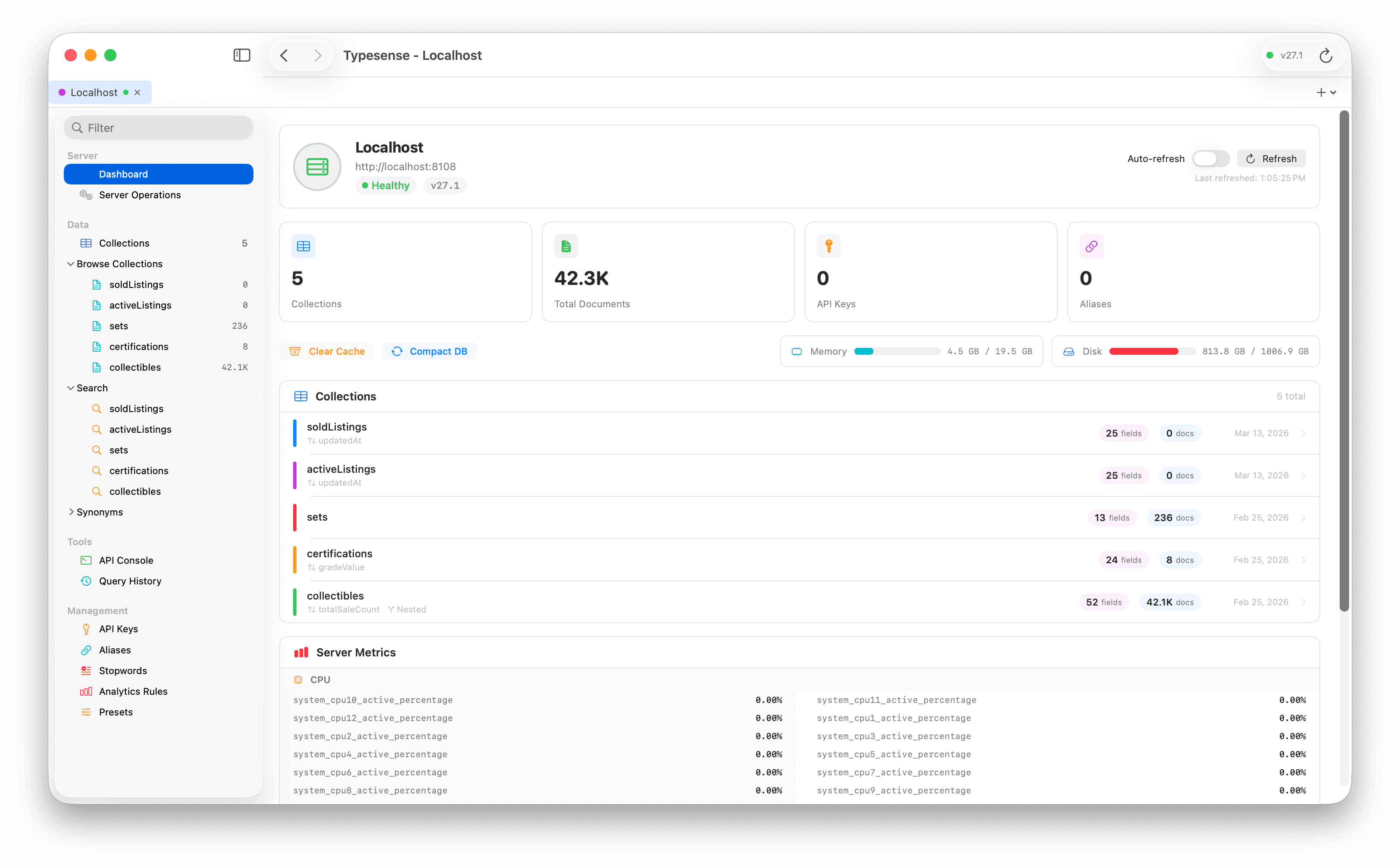
The sidebar shows your collections, search tools, and management options. Open multiple connections as tabs.
Connections
Quick Connect
Connect without saving credentials. Ideal for one-time sessions or testing.
Saved Connections
Create named connections with color coding to visually distinguish environments (production, staging, development). Credentials are stored in the macOS Keychain.
URL Pasting
Paste a full URL like https://my-server.typesense.net:443 into the Host field. Port, protocol, and TLS are set automatically.
TLS / HTTPS
Enable "Use TLS" for HTTPS connections. Self-signed certificates are accepted automatically.
Connect on Startup
Auto-connect to specific servers when the app launches.
Multiple Connections
Connect to multiple servers simultaneously. Each connection gets its own tab. Switch with Cmd+1 through Cmd+9.
Color Coding
Assign colors to visually distinguish production (red) from staging (orange) and development (green).
Collections
Collection List
The sidebar shows all collections with document counts. Click to view details.

Create Collection
Define name, fields with types, and properties like faceting, sorting, and indexing. Toggle nested fields support for documents with nested objects.
Collection Tabs
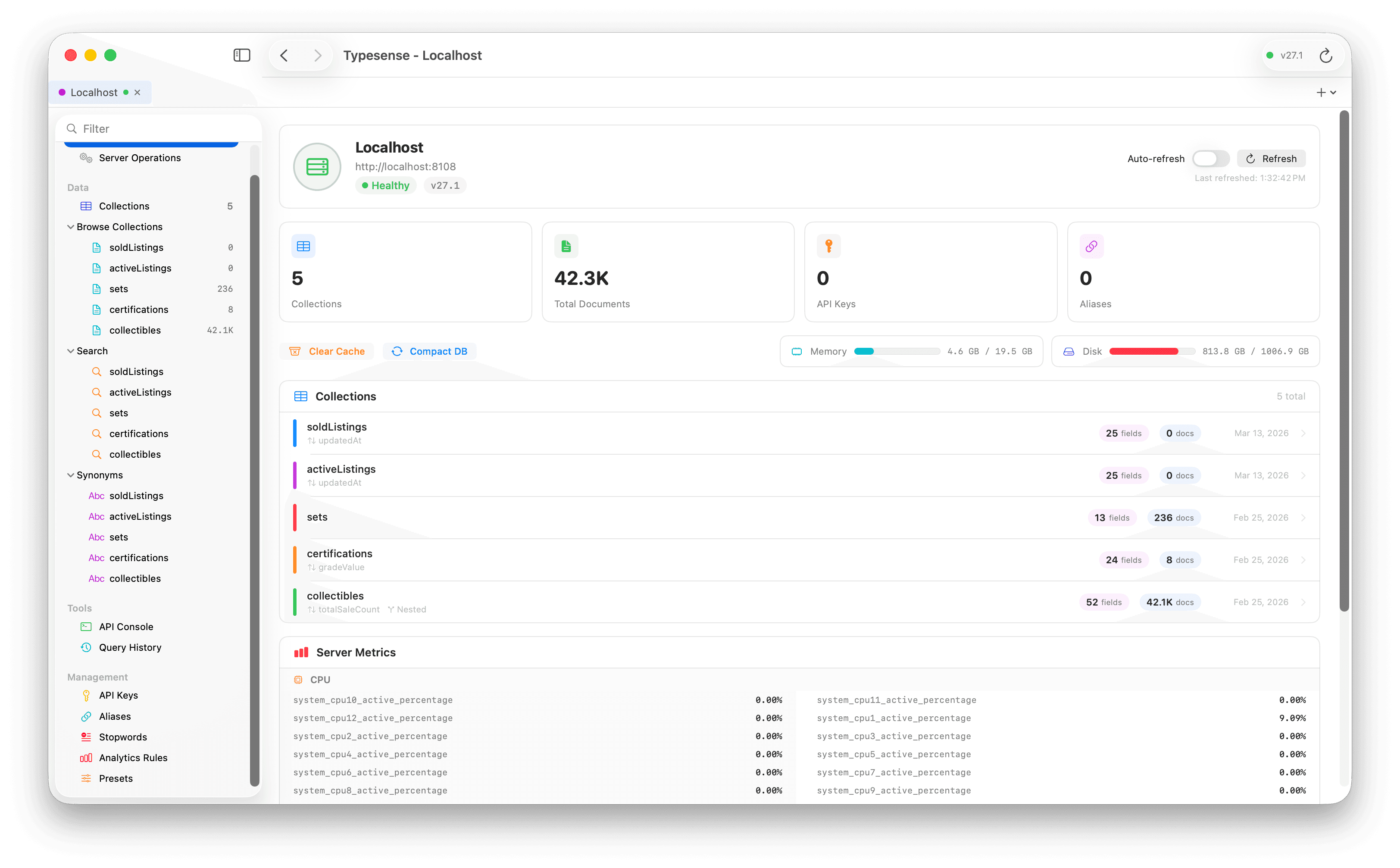
Each collection has tabs: Schema, Browse, Search, Import, Export, Synonyms, Bulk Ops, Settings, and Danger Zone.
Collection Info
The header shows field count, document count, and creation date.
Documents
Browse Tab
Page through all documents with sortable columns, resizable headers, multi-select, and instant filter expressions.
Document Viewer
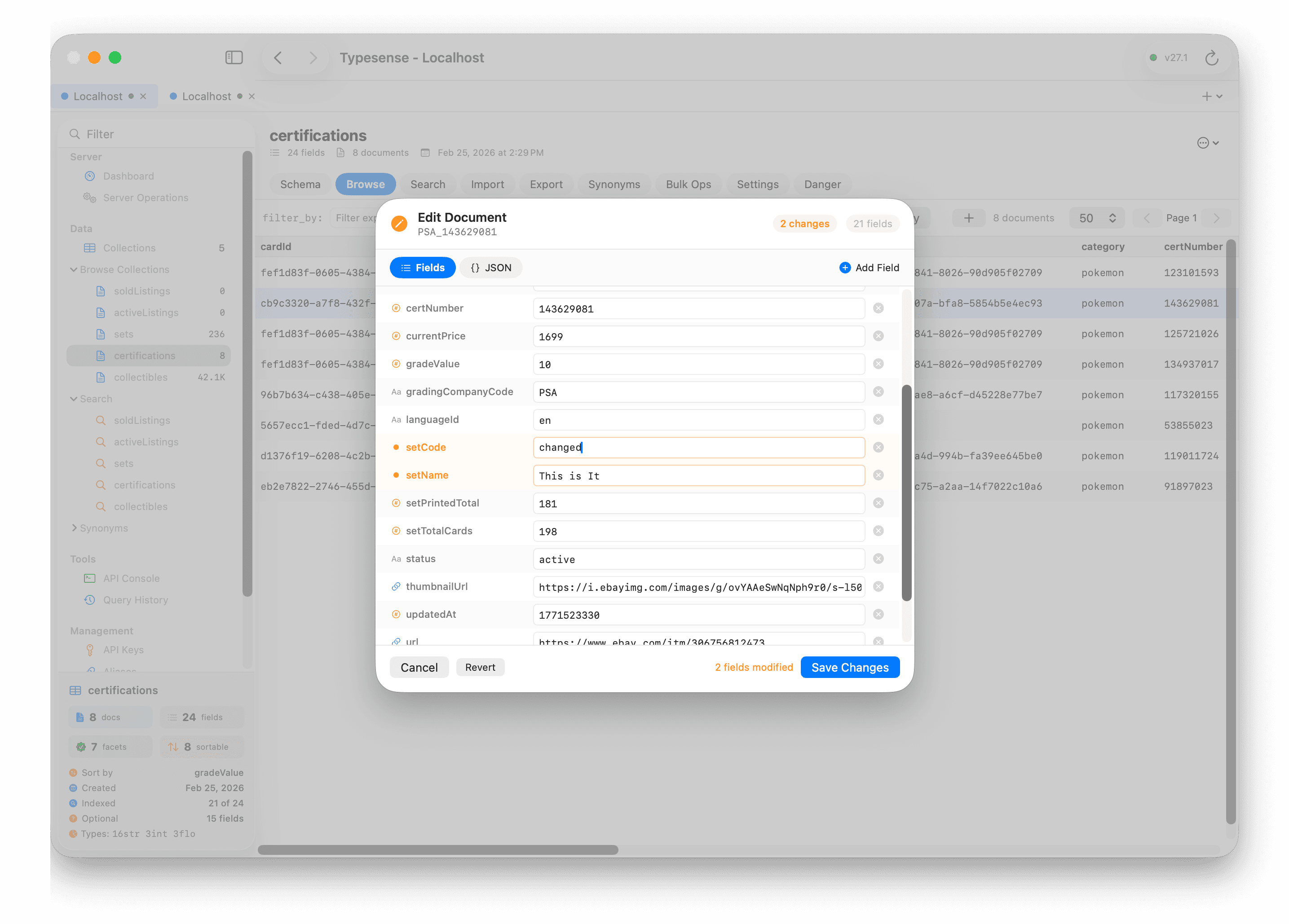
Double-click any row to view all fields with type-aware icons, image previews, and copy buttons. Toggle between field view and raw JSON with syntax highlighting.
Edit Document
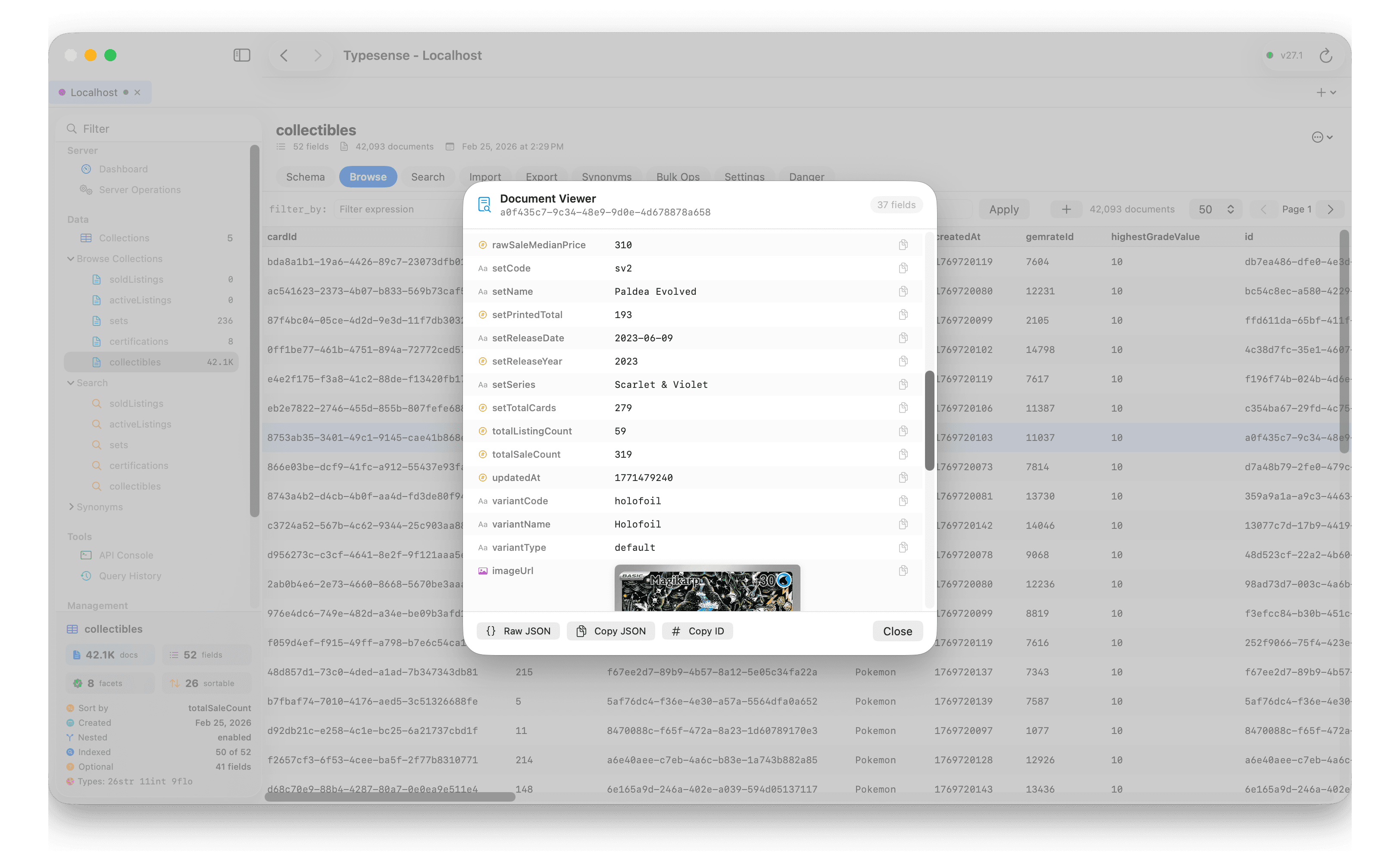
Right-click → Edit. The editor supports structured field editing and raw JSON mode. Changed fields are highlighted in orange.
Create Document
Click + in the Browse toolbar. Fields are pre-populated from the collection schema with appropriate defaults.
Delete Documents
Right-click → Delete. Multi-select with Cmd+click to delete multiple documents at once.
Context Menu
Right-click for: Edit, View, Delete, Copy ID, Copy Row, Copy Row with Headers.
Search
Classic Mode
Visual search builder with field selector, filter rows, and sort picker. No need to write raw expressions.
Advanced Mode
Full control with raw query_by, filter_by, sort_by, facet_by, and all advanced Typesense search parameters.
filter_by
Filter expressions like status:active, price:>100, or combined with && and ||.
Facets
When facet_by is set, a sidebar shows facet values with counts. Click to add as filter.
Query History
Recent searches are saved automatically in the Query History panel.
Import & Export
Import
JSON Lines
Import from .jsonl files. Choose action: create, upsert, update, or emplace.
CSV
Import from CSV files. First row must be headers. Types are auto-converted based on schema.
Batch Size
Control memory usage and server load for large imports.
Export
JSON Lines
Export as .jsonl with one JSON object per line.
CSV
Export as CSV with auto-generated headers.
Filters
Use filter_by, include_fields, and exclude_fields to export subsets.
Preview
Preview the first 200 lines before exporting to file.
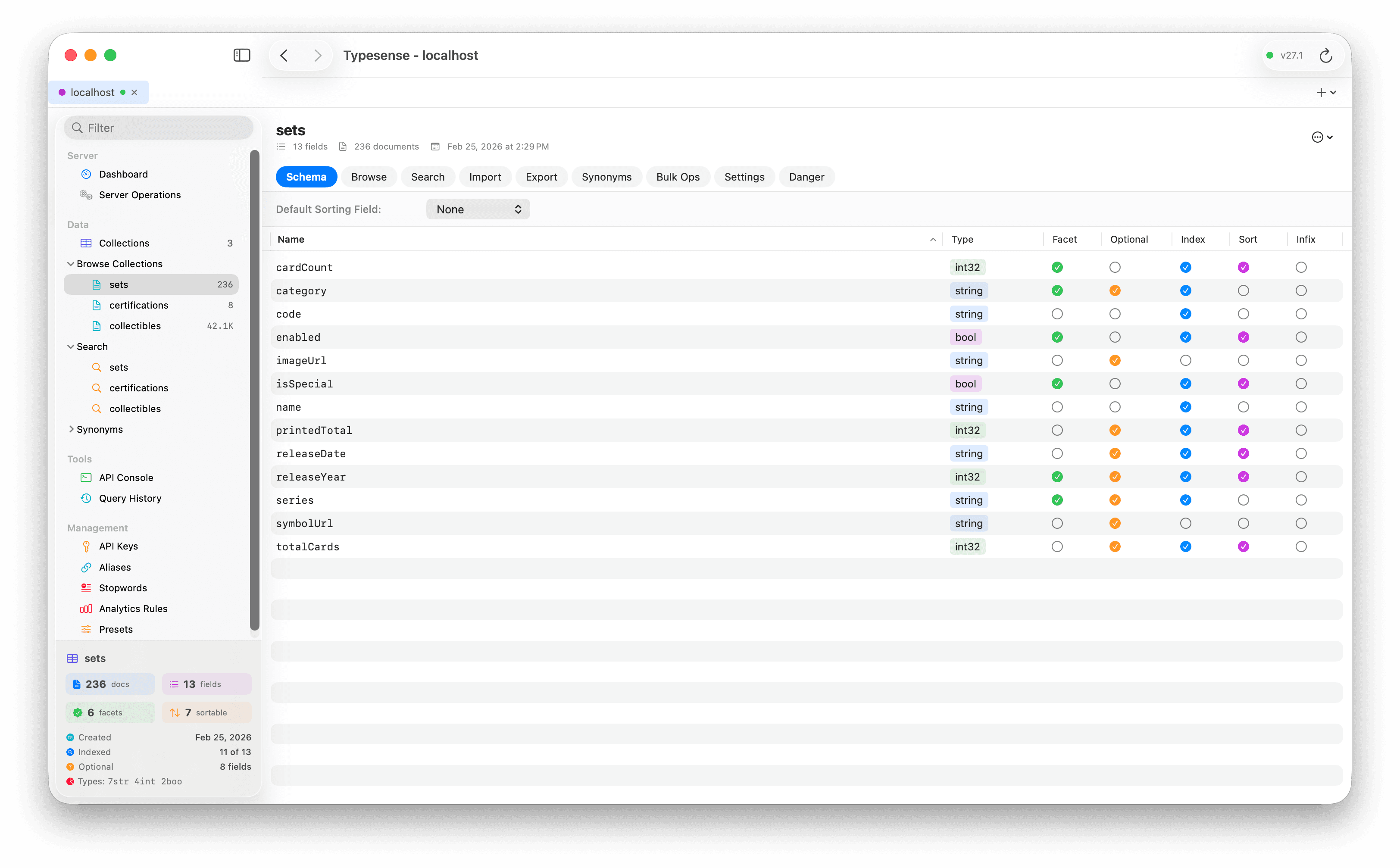
Schema Editing
Schema View
All fields in a sortable table with Name, Type, Facet, Optional, Index, Sort, and Infix columns.
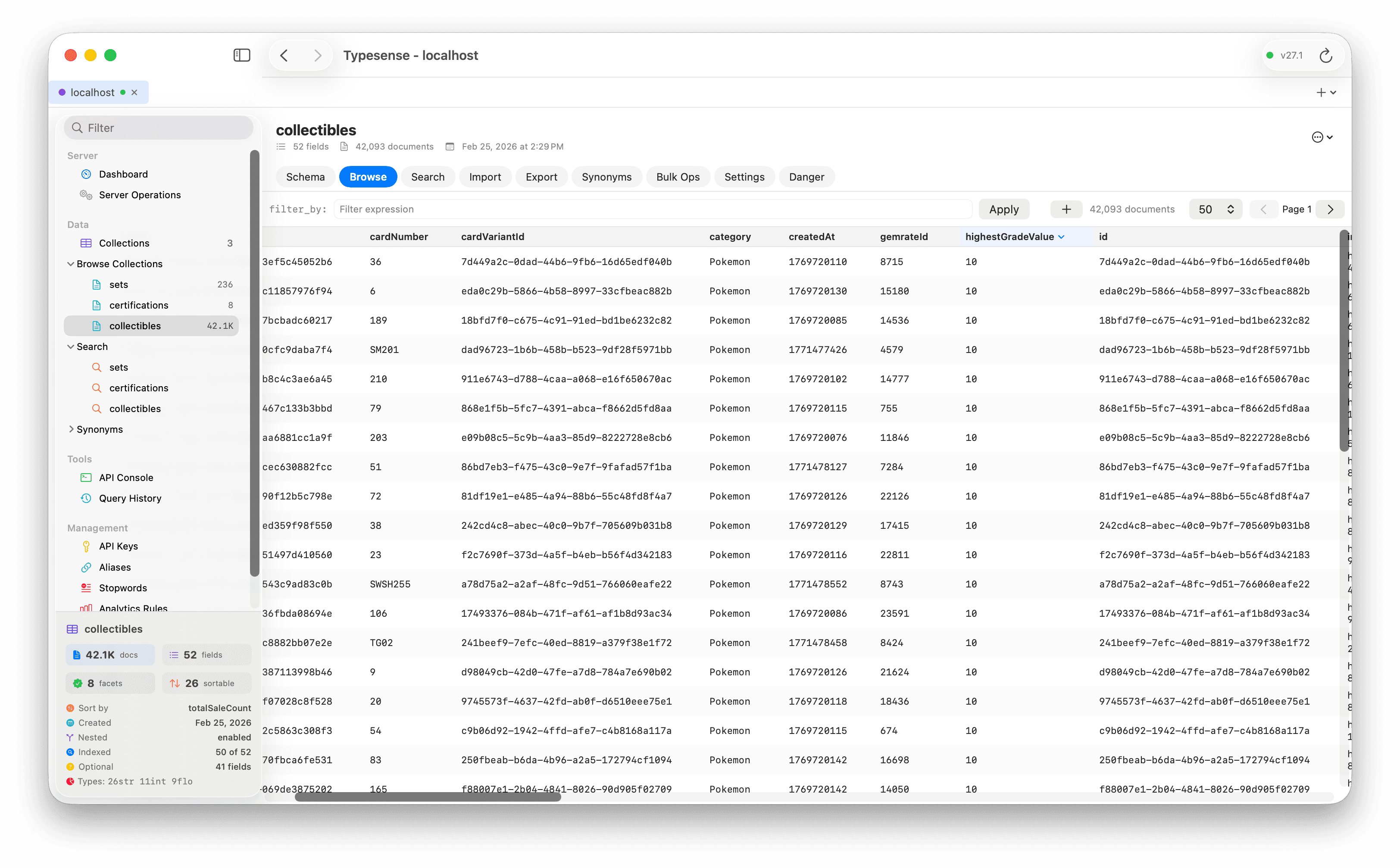
Edit Properties
Click toggle icons to change field properties. Changes are tracked as pending with Apply/Cancel buttons.
Rename Fields
Right-click → Rename. Note: Typesense implements rename as drop + re-add.
Delete Fields
Right-click → Delete. Marked with strikethrough until applied.
Default Sort Field
Set via the picker at the top. Only numeric fields with sort enabled are eligible.
API Keys
Key Management
View all keys with ID, description, prefix, actions, collections, and expiration.
Create Key
Granular permissions per resource type. Actions organized by category: Documents, Collections, Aliases, API Keys, Synonyms, etc.
Wildcard Key
Use * for admin keys with all permissions. Use sparingly.
Collection Scoping
Restrict keys to specific collections or use * for all.
Expiration
Never, 1 hour, 1 day, 7 days, 30 days, or 1 year.
Synonyms
Multi-way Synonyms
Groups of interchangeable words. Searching for any word returns results for all. Example: blazer, coat, jacket.
One-way Synonyms
A root word that expands to synonyms. Example: pants → trousers, slacks.
Managing
Access from the Synonyms tab on each collection or from the sidebar.
Aliases
What are Aliases?
Virtual names that point to actual collections. Swap the underlying collection without changing application code.
Use Case
Create alias "products" → products_v1. Reindex to products_v2, then update the alias. Zero downtime.
Analytics & Presets
Analytics Rules
Track search queries and clicks for query suggestions and popular searches.
Presets
Save reusable query configurations. Reference by name in your application.
Stopwords
Define common words to exclude from search indexing with locale support.
Server Operations
Dashboard
Monitor server health, version, memory, disk, and request metrics with auto-refresh.
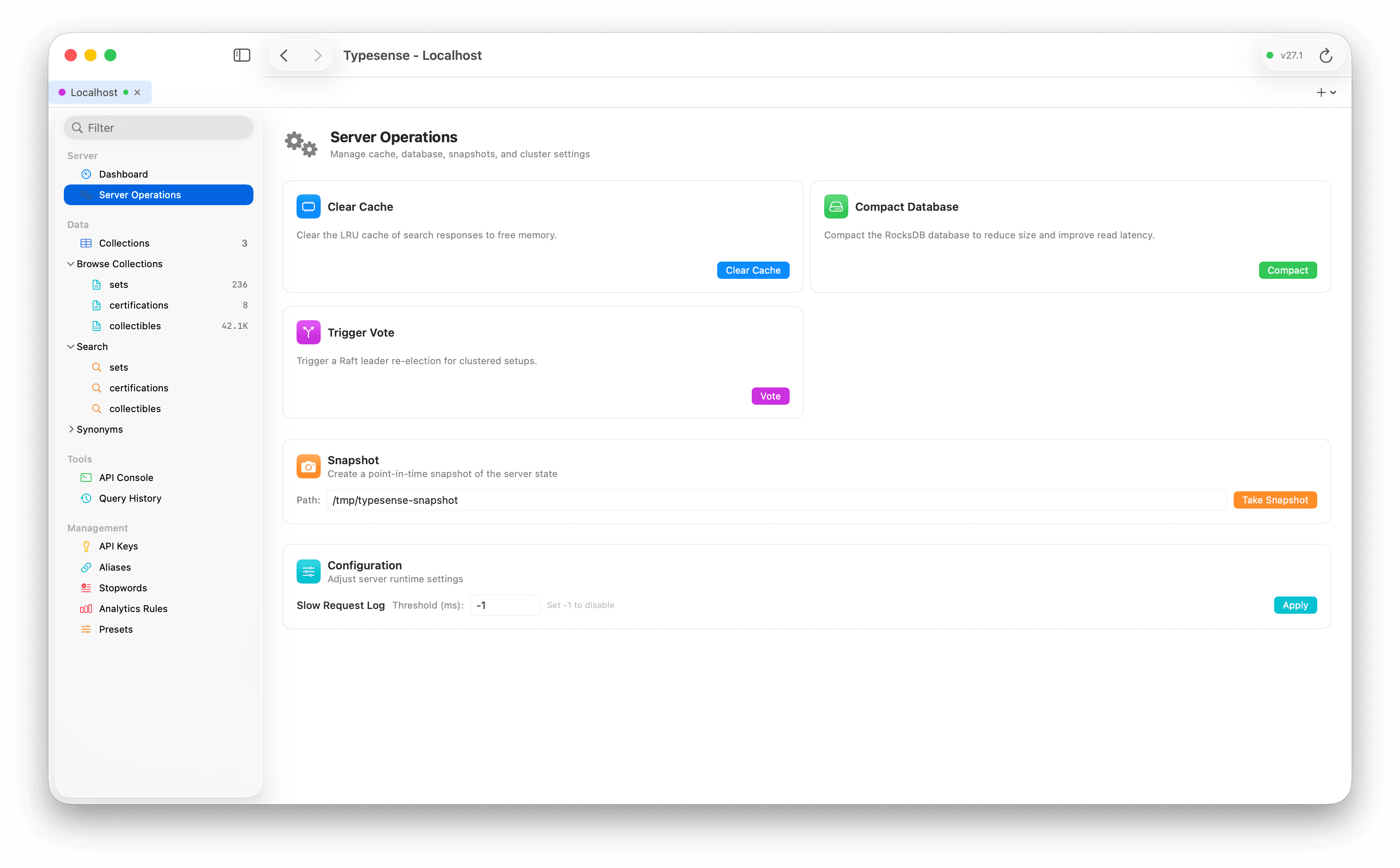
Clear Cache
Clear internal search cache after bulk updates.
Compact Database
Trigger RocksDB compaction to reclaim disk space.
Create Snapshot
Database snapshot at a specified path for backups.
Slow Request Log
Configure threshold in milliseconds to identify bottlenecks.
Vote
Trigger leader vote in clustered setups.
API Console
REST Client
Send raw HTTP requests (GET, POST, PUT, PATCH, DELETE) to your Typesense server.
Endpoint Shortcuts
Quick-access buttons for common endpoints: /health, /debug, /collections, /keys, etc.
Syntax Highlighting
JSON responses are syntax-highlighted with color-coded keys, strings, numbers, and booleans.
Export Options
Copy response as JSON, export to file, or copy the request as a cURL command.
Preferences
General
Appearance
Auto (follows system), Light, or Dark mode.
Navigation History
Back/forward history size: 3, 5, 10, or 20 entries.
Dashboard Auto-Refresh
Interval: 10s, 30s, 1min, 2min, or 5min.
Search & Browse
Results Per Page
Default page size for browse and search views.
Number of Typos
Default typo tolerance: 0, 1, or 2.
Default Sort Order
Ascending or descending when clicking column headers.
Editor & Export
Default Editor Mode
Start in Fields (structured) or JSON mode.
JSON Indentation
2 spaces, 4 spaces, or tab.
Default Export Format
JSON Lines or CSV.
Display
Cell Text Overflow
Ellipsis, Clip, or Wrap for table cells.
Alternating Rows
Toggle alternating row colors with adjustable intensity.
Keyboard Shortcuts
Navigation
Cmd + 1–9Switch between open connection tabsCmd + [Navigate back in sidebar historyCmd + ]Navigate forward in sidebar historyDocuments
Cmd + ReturnExecute search↑ / ↓Navigate table rowsReturnOpen selected document in viewerCmd + ClickMulti-select rowsDouble-clickOpen document viewerConnections
Cmd + SSave connection profileCmd + ReturnConnect to serverGeneral
Cmd + ,Open PreferencesCmd + ?Open HelpEscapeClose sheet or cancel actionTips & Tricks
Environment Color Coding
Use red for production, orange for staging, green for development. The colored dot in the tab bar makes it obvious which environment you're in.
URL Paste Shortcut
Paste a full URL into the Host field — port, TLS, and scheme are auto-detected.
Quick Schema Check
Check the Schema tab before importing to ensure field types match your data.
Bulk Delete with Filters
Use Bulk Ops with a filter_by expression to delete specific document subsets.
Export Before Dangerous Ops
Export your data before clearing or deleting a collection as a backup.
Scoped API Keys
Create minimal-permission keys for your frontend. A search-only key scoped to one collection is safer than sharing your admin key.
Column Resizing
Drag column borders in the results table to resize. Great for wide fields like URLs.